Note
Go to the end to download the full example code.
Pie and Donut Charts#
Part-of-whole composition, in the same visual language as the rest of a
figure set: the publiplots palette, the theme edge, and a legend that can
join a shared band. A pie is a one-level sunburst — x names the
wedge, y the value (omitted, rows are counted), and hue means
colour and nothing else.
import pandas as pd
import publiplots as pp

df = pd.DataFrame({
    "kind": ["symptom", "admin", "lay_dx", "none"],
    "n": [52.2, 41.8, 6.0, 4.0],
})

# Not the default assignment: each category gets a colour the default
# palette would have given another one.
palette = {"symptom": "#8e8ec1", "admin": "#eeaa58",
           "lay_dx": "#e67e7e", "none": "#75b375"}
A pie beside a bar panel#
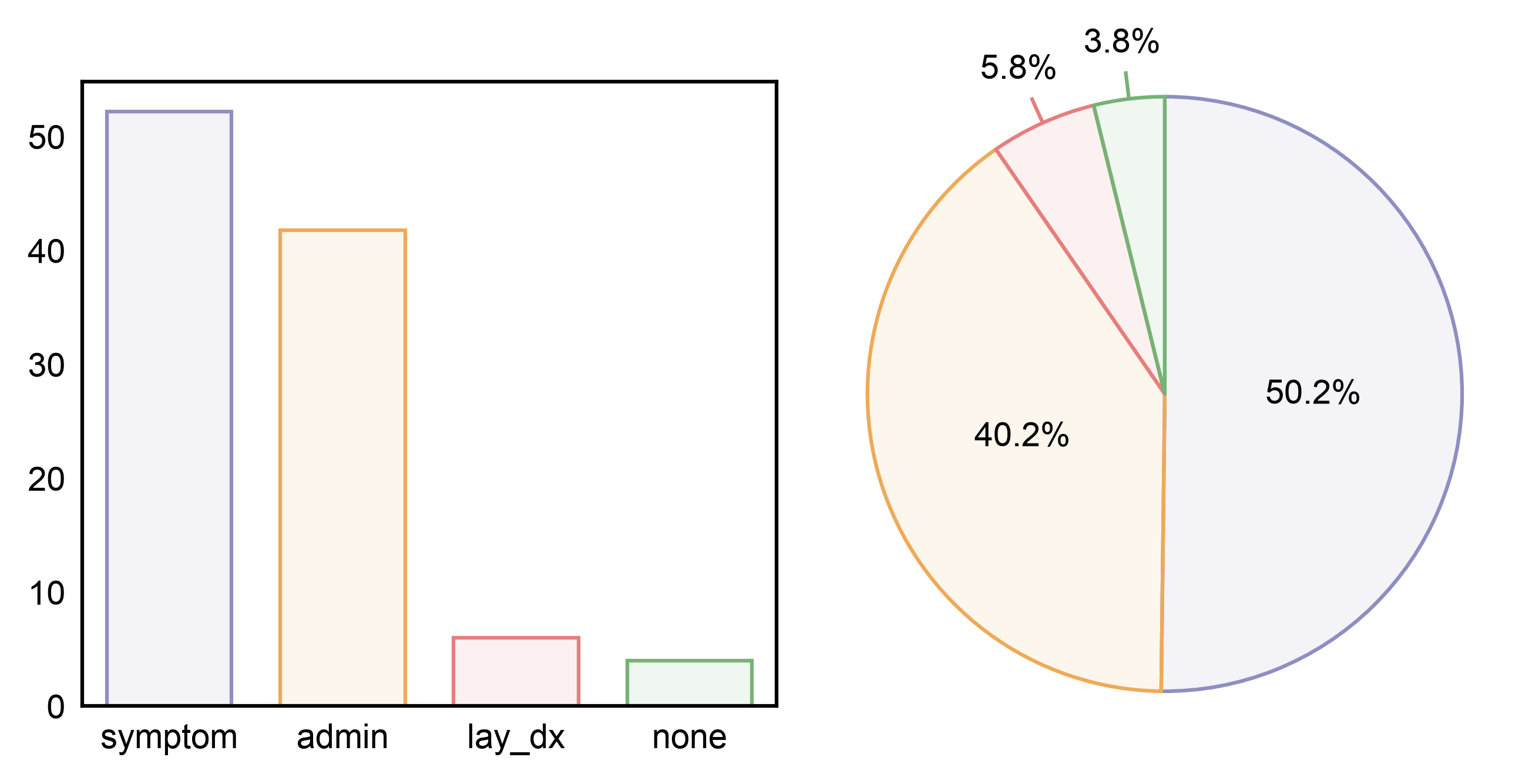
The case this plotter exists for. Both panels take the same palette
dict keyed on the same categories, so each category has one colour
across the figure. barplot only maps palette through hue,
so the bar panel passes hue="kind" as well; the pie colours by its
x column without being asked. annotate=True labels each wedge
with its share of the whole, as a percentage; the two wedges too thin
to hold theirs get them outside, on leader lines.
One legend for both panels#
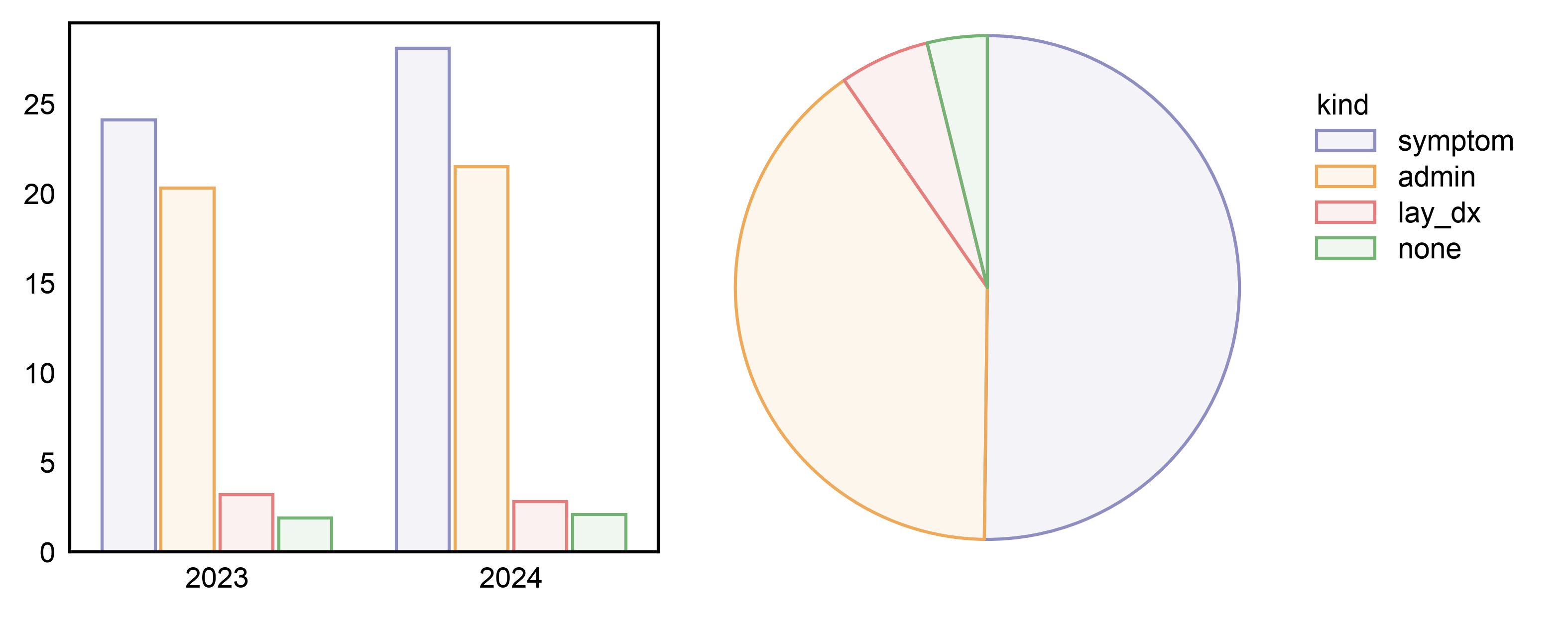
Here the bars break each category down by year, and the pie shows the
two years pooled. Both panels key colour on kind, and each stashes
a kind colour entry; a figure-level pp.legend band collects
both and merges them by name, so kind is listed once, for both
panels. Merging is by name, not by colour: where two panels draw the
same label differently, the band keeps the first panel’s swatch and,
for a different fill or stroke width, warns. The shared palette
is what makes the merged key true of both panels.
(A bar panel whose x is kind itself, as above, labels its
categories on the axis and stashes no colour entry, so it has nothing
to merge.)
yearly = pd.DataFrame({
    "year": ["2023"] * 4 + ["2024"] * 4,
    "kind": ["symptom", "admin", "lay_dx", "none"] * 2,
    "n": [24.1, 20.3, 3.2, 1.9, 28.1, 21.5, 2.8, 2.1],
})
fig, axes = pp.subplots(ncols=2, axes_size=(50, 45))
pp.legend(side="right")
pp.barplot(data=yearly, x="year", y="n", hue="kind", palette=palette,
           ax=axes[0])
pp.pieplot(data=yearly, x="kind", y="n", palette=palette, ax=axes[1])
pp.show()
Counting rows#
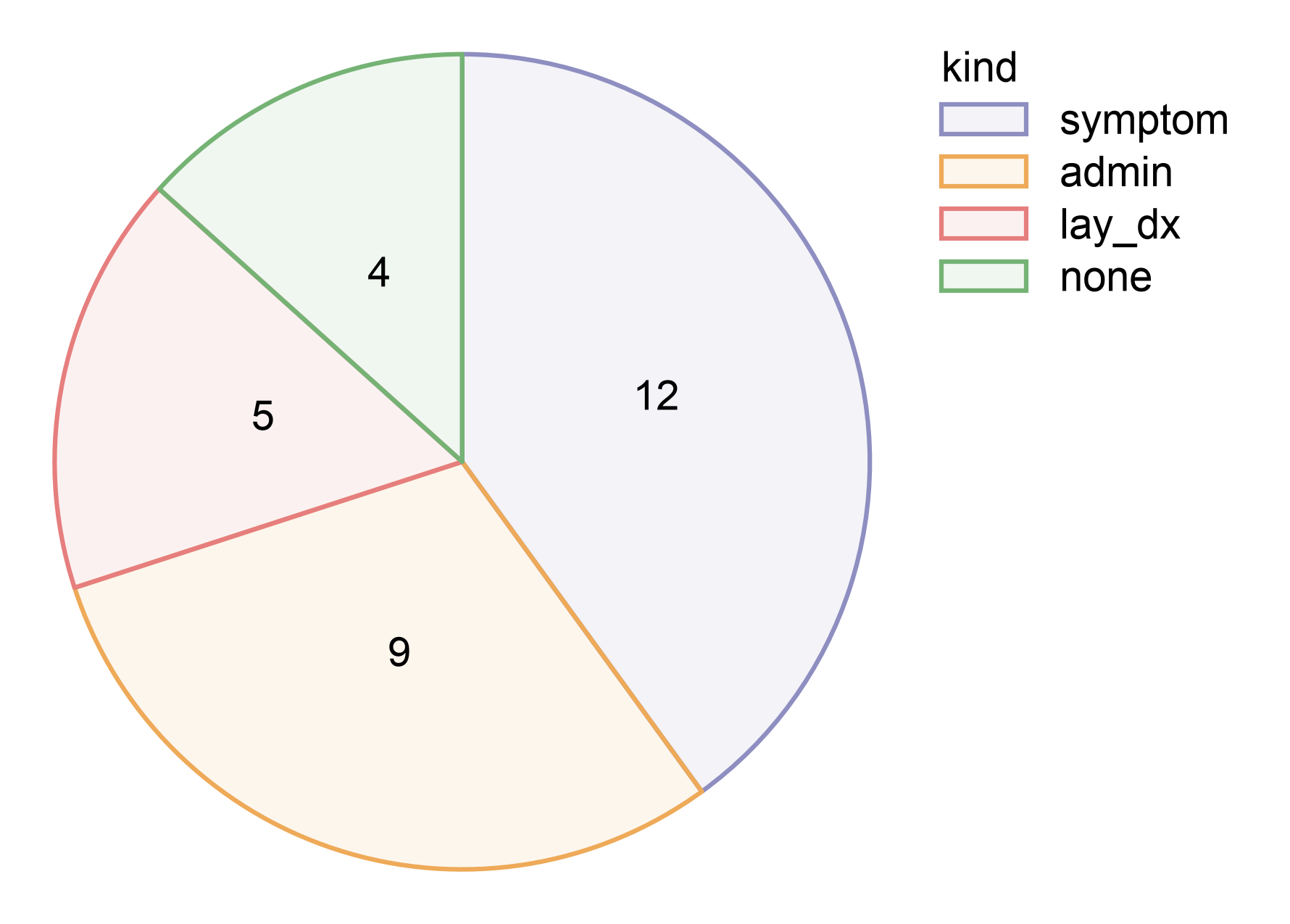
With y omitted, each wedge is the number of rows in its category,
so a pie can be drawn straight from one-row-per-observation data.
fmt=",.0f" labels the counts rather than the shares.
visits = pd.DataFrame({
    "kind": ["symptom"] * 12 + ["admin"] * 9 + ["lay_dx"] * 5
            + ["none"] * 4,
})
fig, ax = pp.subplots(axes_size=(50, 50))
pp.pieplot(data=visits, x="kind", palette=palette, ax=ax,
           annotate={"fmt": ",.0f"})
pp.show()
A palette by name#
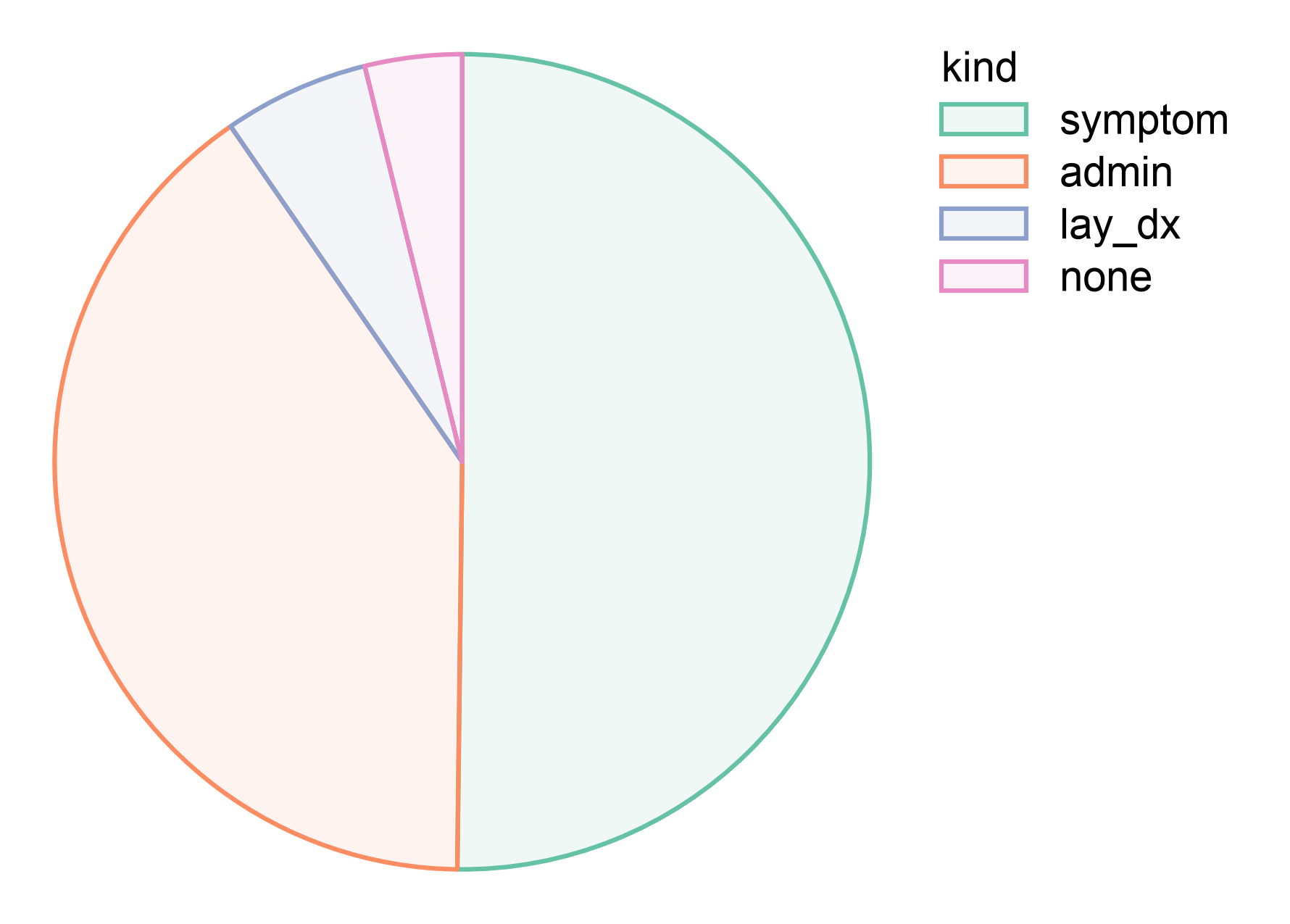
palette also takes a seaborn or publiplots palette name, assigned
in category order.
fig, ax = pp.subplots(axes_size=(50, 50))
pp.pieplot(data=df, x="kind", y="n", palette="Set2", ax=ax)
pp.show()
Wedge order#
By default wedges follow the category order of the data — the same
order a bar panel drawn from the same frame uses — running clockwise
from twelve o’clock. sort=True orders them by descending value
instead, and order= names the order outright. order= should
list every category: one it leaves out is dropped and the rest
renormalise to a full circle, with a warning.
severity = pd.DataFrame({
    "stage": ["mild", "moderate", "severe", "critical"],
    "n": [20.0, 45.0, 25.0, 10.0],
})
stage_palette = dict(zip(severity["stage"], pp.color_palette("pastel", 4)))

fig, axes = pp.subplots(ncols=4, axes_size=(36, 36))
pp.legend(side="right")
pp.barplot(data=severity, x="stage", y="n", hue="stage",
           palette=stage_palette, ax=axes[0], title="bars")
for label in axes[0].get_xticklabels():
    label.set(rotation=45, ha="right", rotation_mode="anchor")
pp.pieplot(data=severity, x="stage", y="n", palette=stage_palette,
           ax=axes[1], title="default")
pp.pieplot(data=severity, x="stage", y="n", palette=stage_palette,
           sort=True, ax=axes[2], title="sort=True")
pp.pieplot(data=severity, x="stage", y="n", palette=stage_palette,
           order=["severe", "mild", "critical", "moderate"], ax=axes[3],
           title="order=[...]")
pp.show()
![bars, default, sort=True, order=[...]](../_images/sphx_glr_plot_26_pie_and_donut_005.png)
Legend order#
hue_order reorders the legend’s entries and nothing else: the
wedges stay where the data order puts them, and every wedge keeps its
colour.
fig, axes = pp.subplots(ncols=2, axes_size=(36, 36))
pp.pieplot(data=severity, x="stage", y="n", palette=stage_palette,
           ax=axes[0], title="default")
pp.pieplot(data=severity, x="stage", y="n", palette=stage_palette,
           hue_order=["critical", "severe", "moderate", "mild"],
           ax=axes[1], title="hue_order=[...]")
pp.show()
![default, hue_order=[...]](../_images/sphx_glr_plot_26_pie_and_donut_006.png)
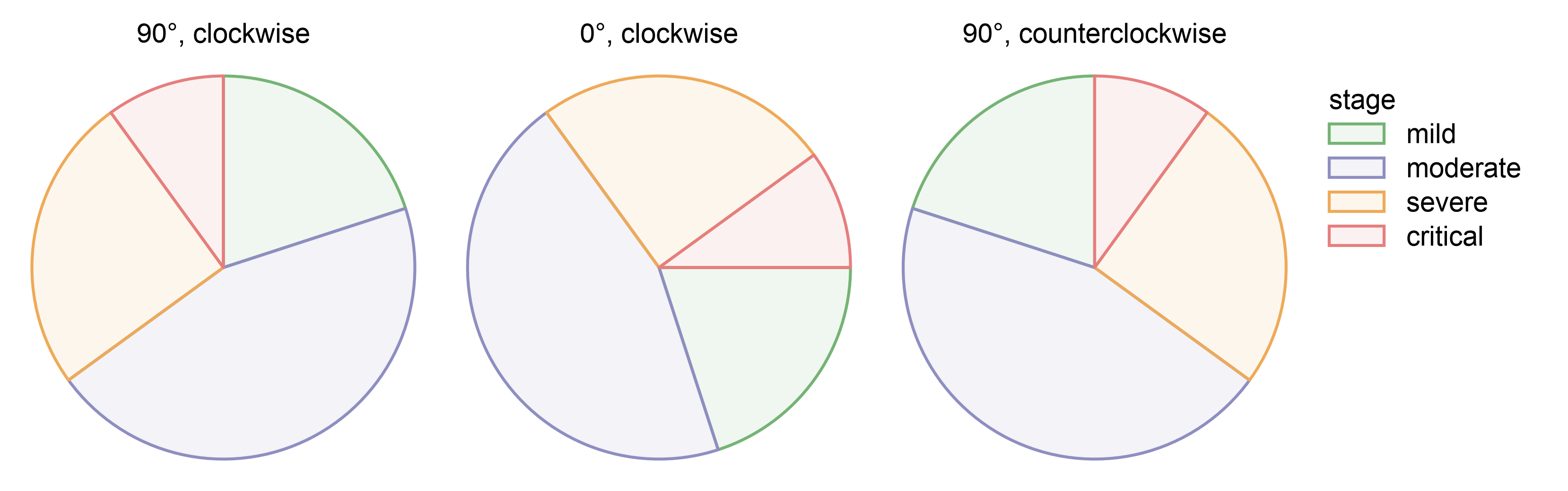
Where the first wedge starts, and which way they run#
start_angle is the angle of the first wedge’s leading edge, in
degrees: 90 (the default) is twelve o’clock, 0 is three o’clock.
direction is "clockwise" (the default) or
"counterclockwise".
fig, axes = pp.subplots(ncols=3, axes_size=(36, 36))
pp.legend(side="right")
for ax, (start, direction) in zip(axes, [(90, "clockwise"),
                                         (0, "clockwise"),
                                         (90, "counterclockwise")]):
    pp.pieplot(data=severity, x="stage", y="n", palette=stage_palette,
               start_angle=start, direction=direction, ax=ax,
               title=f"{start}°, {direction}")
pp.show()
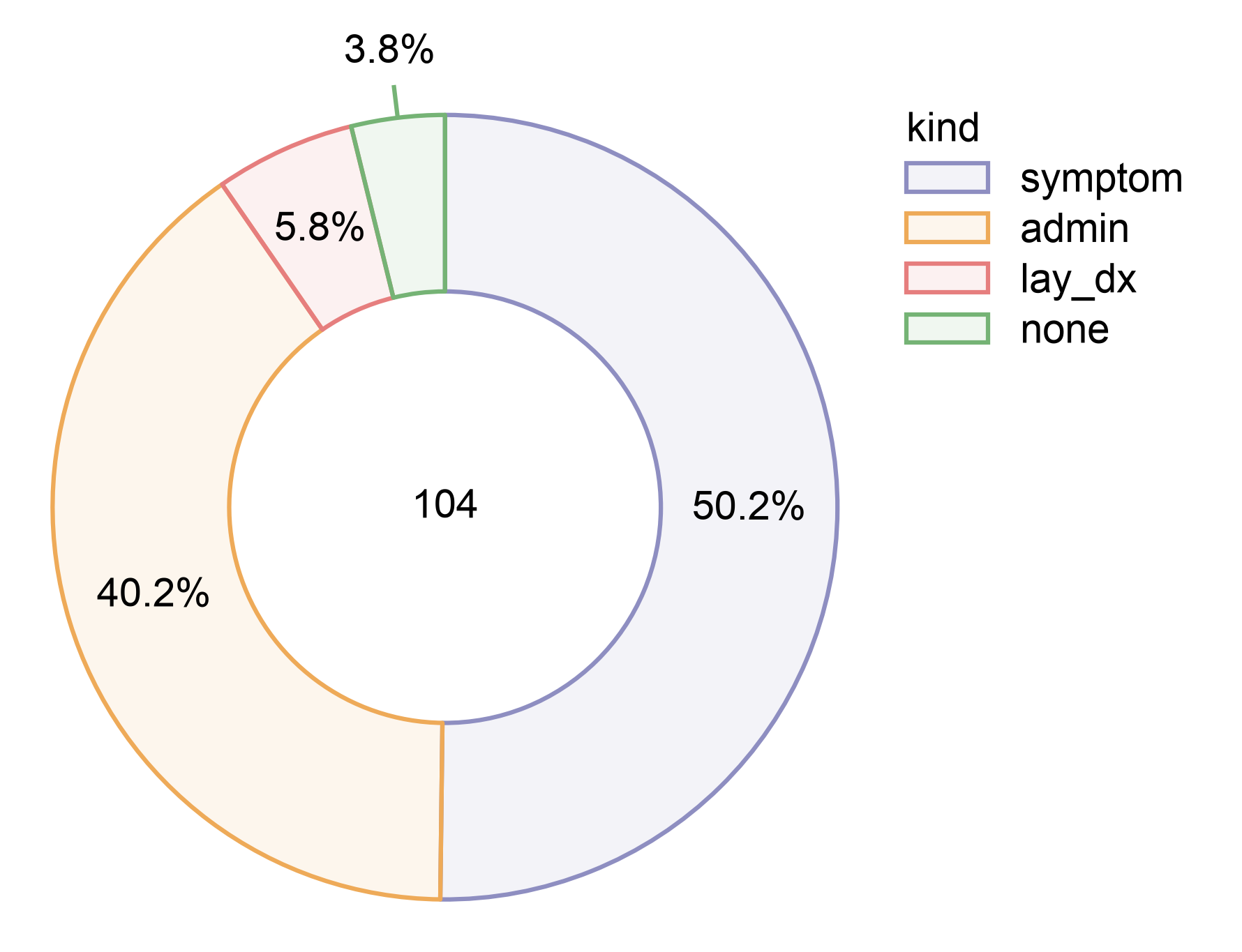
A donut, with the total in the hole#
donut is the inner radius as a fraction of the outer one.
center_label takes a string, or a callable receiving the total, and
is only drawn when donut is non-zero.
fig, ax = pp.subplots(axes_size=(50, 50))
pp.pieplot(data=df, x="kind", y="n", donut=0.55, palette=palette,
           center_label="{:,.0f}".format, ax=ax, annotate=True)
pp.show()
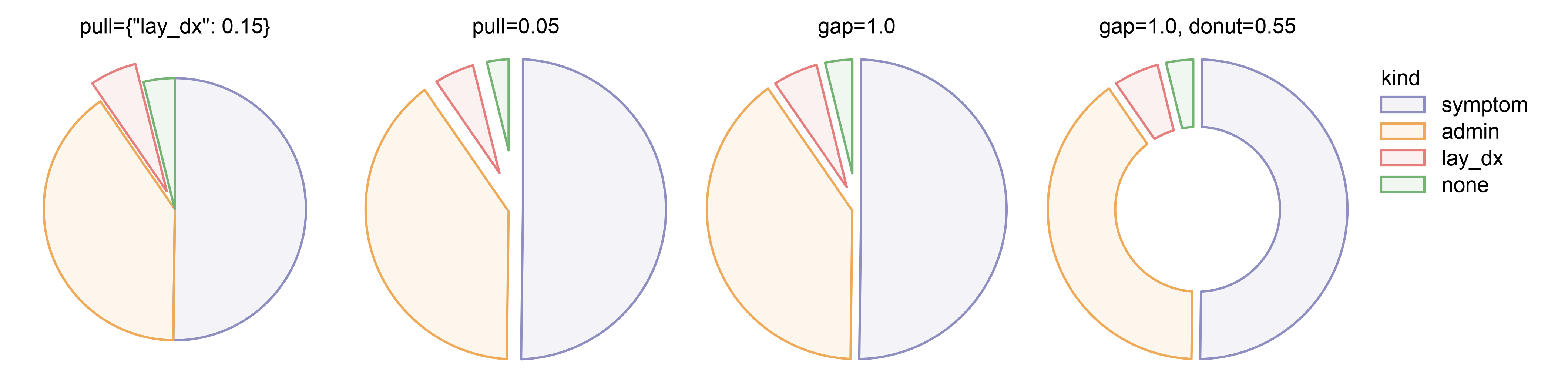
Pulling wedges out#
pull is a fraction of the radius. A dict keyed by category pops
out just those wedges — it is never positional — moving each along
its own mid-ray with its shape unchanged. A single float explodes the
whole chart evenly instead: every wedge moves out by the same
distance t, rim and inner edge alike, and every pair of neighbours
ends up 2t apart, the thin wedges as far from their neighbours as
the wide ones. A pie opens a small hole at its centre to do it. gap
separates the wedges by a width in millimetres without moving them
out: every pair of neighbours keeps it along the whole of the edge
they share, in a pie or a donut. With a float pull the two add up.
fig, axes = pp.subplots(ncols=4, axes_size=(36, 36))
pp.legend(side="right")
pp.pieplot(data=df, x="kind", y="n", palette=palette,
           pull={"lay_dx": 0.15}, ax=axes[0],
           title='pull={"lay_dx": 0.15}')
pp.pieplot(data=df, x="kind", y="n", palette=palette, pull=0.05,
           ax=axes[1], title="pull=0.05")
pp.pieplot(data=df, x="kind", y="n", palette=palette, gap=1.0,
           ax=axes[2], title="gap=1.0")
pp.pieplot(data=df, x="kind", y="n", palette=palette, gap=1.0,
           donut=0.55, ax=axes[3], title="gap=1.0, donut=0.55")
pp.show()
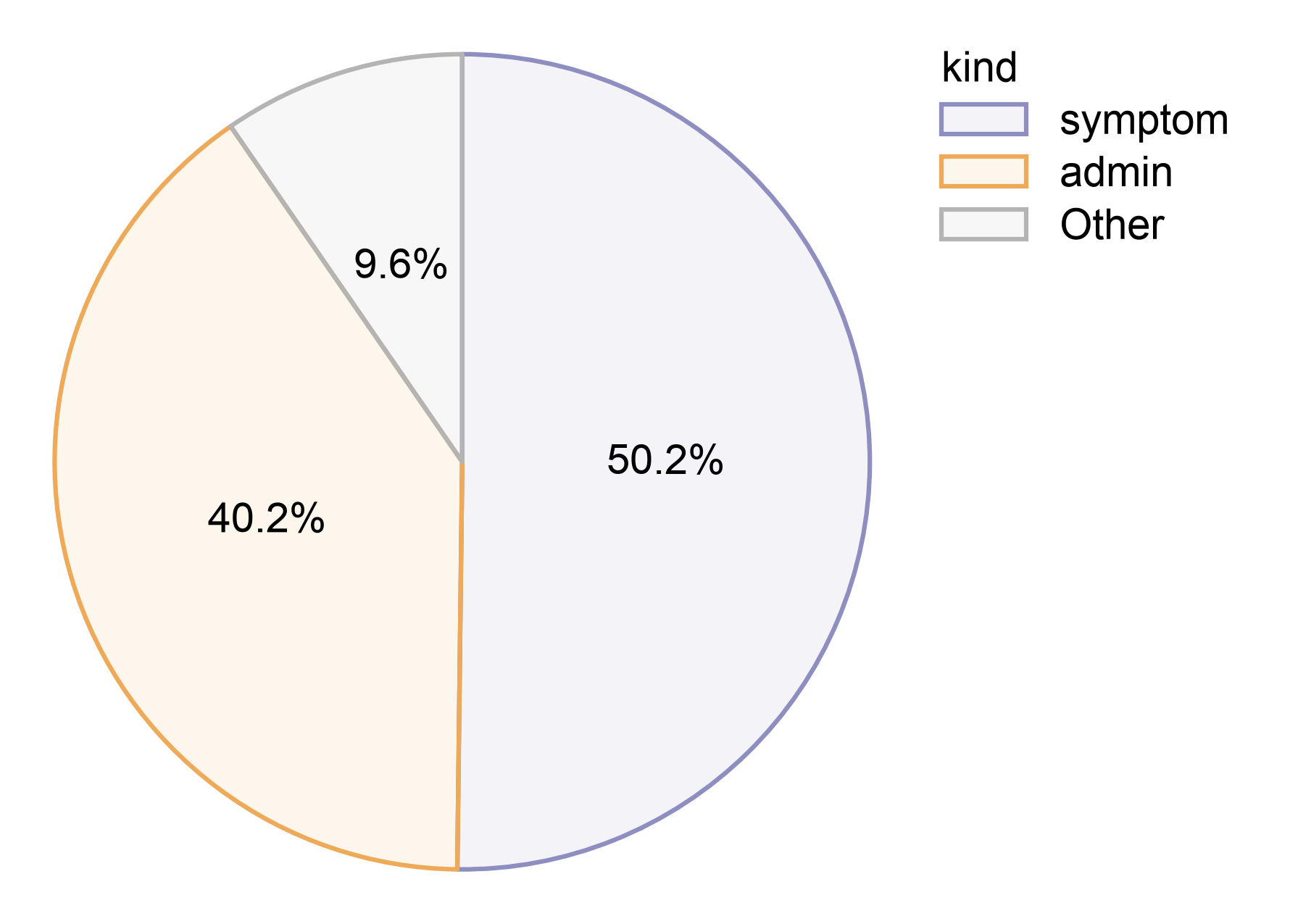
Collapsing the long tail#
min_share merges every category below a threshold into one
"Other" wedge. It applies only when at least two categories fall
below it, so a single small category is never relabelled "Other"
on its own. min_share cannot be combined with order: the
"Other" bucket is not a category of the data, so it could not be
named in an explicit order.
fig, ax = pp.subplots(axes_size=(50, 50))
pp.pieplot(data=df, x="kind", y="n", palette=palette, min_share=0.1,
           ax=ax, annotate=True)
pp.show()
Labels inside, outside, or chosen per wedge#
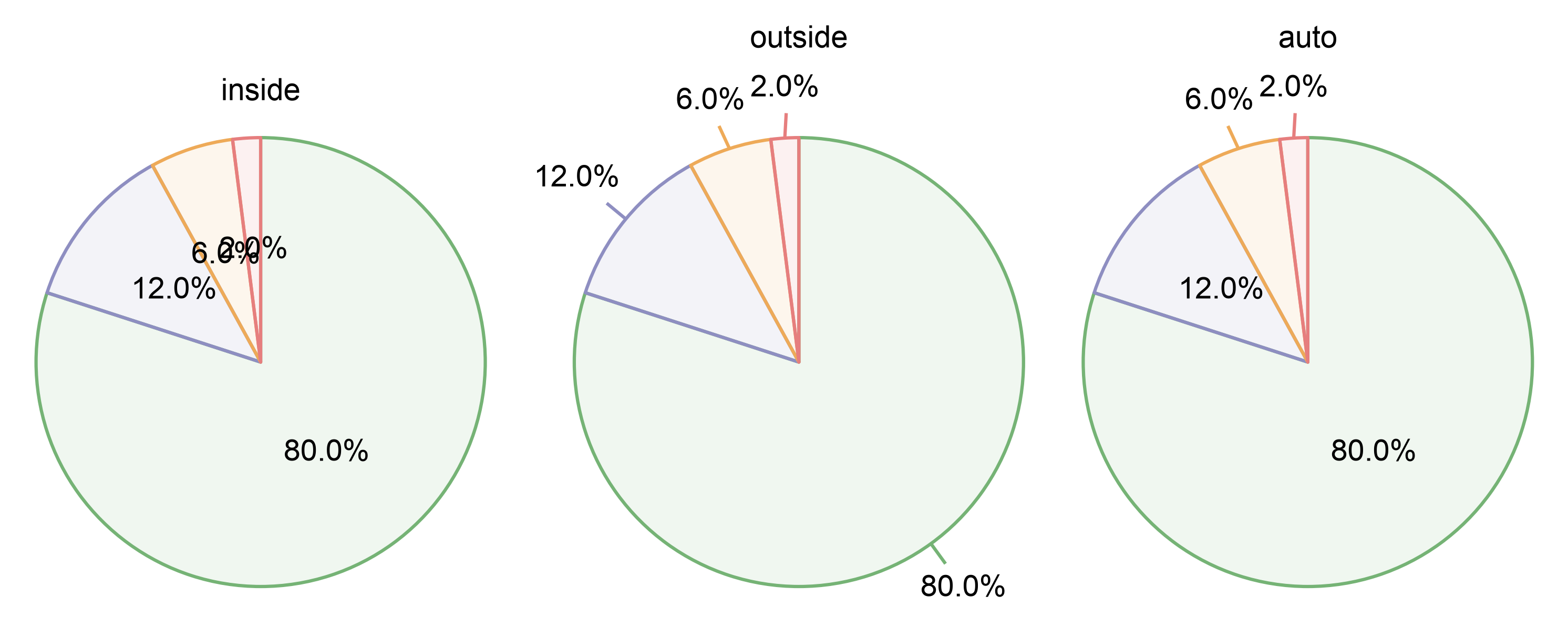
anchor="auto" (the default) measures each label against the room
its own wedge has, and moves it outside, on a leader line, when it
does not fit — the thin slivers below. "inside" and "outside"
force every label to one placement regardless of fit. An outside label
is centred on its wedge’s mid-ray, a little past the end of its line.
The disc is the same size under all three: a label that leaves it
extends past the axes rather than shrinking the pie. On their own
mid-rays the 6.0% and 2.0% labels would just overlap, so under
"outside" and "auto" they are nudged apart round the circle –
by less than a degree each, their leaders leaning to follow – until
they are label_spacing (0.4mm) apart; the other labels stay on
their mid-rays. “Crowded labels” below shows this at work on a long
tail.
Like a tick label, an outside label is a decoration: the axes title
above it, and a legend beside it, step past it.
thin = pd.DataFrame({"kind": list("ABCD"), "n": [80.0, 12.0, 6.0, 2.0]})
fig, axes = pp.subplots(ncols=3, axes_size=(38, 38))
for ax, anchor in zip(axes, ["inside", "outside", "auto"]):
    pp.pieplot(data=thin, x="kind", y="n", legend=False, ax=ax)
    pp.annotate(ax, "wedge_values", anchor=anchor)
    ax.set_title(anchor)
pp.show()
How far outside labels sit#
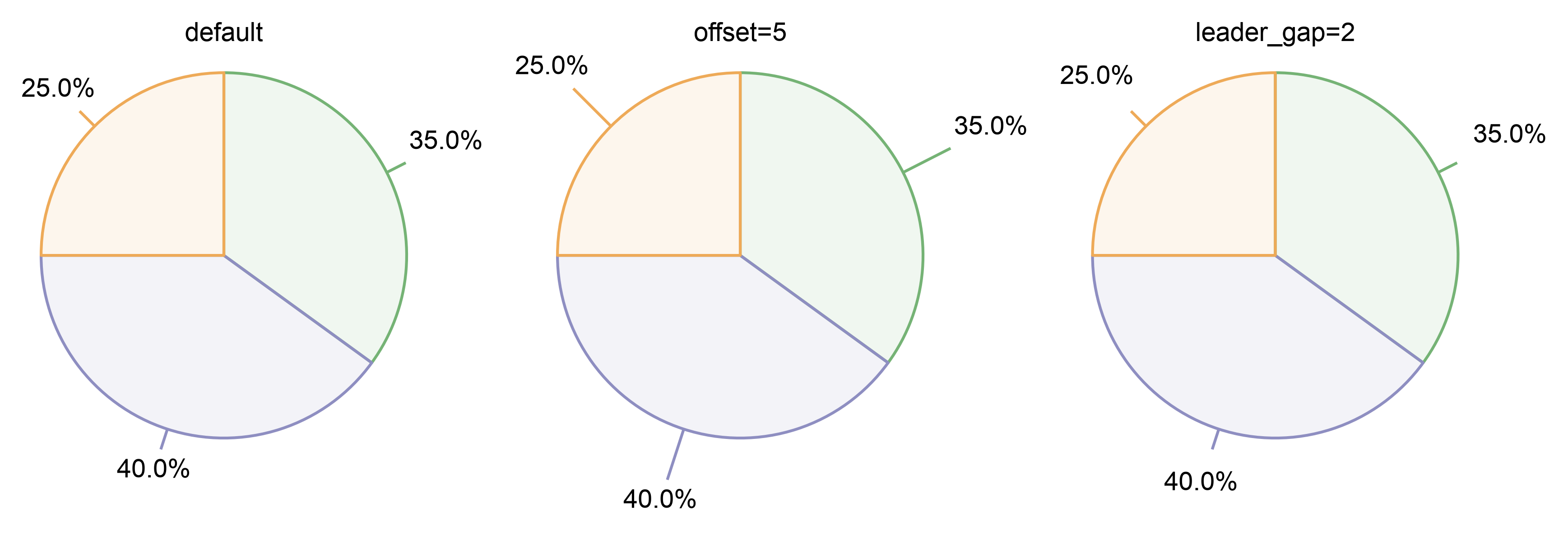
offset is the length of the leader line from the rim, and
leader_gap the space between its end and the label, both in
millimetres (pp.rcParams["pie.label_offset"] and
pp.rcParams["pie.leader_gap"], 2 and 0.8 by default). The
gap is the distance you see, from the end of the line to the nearest
point of the label, so it is the same at every angle. Like tick
labels, outside labels sit beyond the axes, so a larger offset leaves
the disc as it is and grows the figure instead.
arms = pd.DataFrame({"arm": ["placebo", "low", "high"],
                     "n": [35.0, 40.0, 25.0]})
fig, axes = pp.subplots(ncols=3, axes_size=(36, 36))
for ax, (title, kws) in zip(axes, [("default", {}),
                                   ("offset=5", {"offset": 5}),
                                   ("leader_gap=2", {"leader_gap": 2})]):
    pp.pieplot(data=arms, x="arm", y="n", legend=False, ax=ax,
               annotate={"anchor": "outside", **kws}, title=title)
pp.show()
Leader lines#
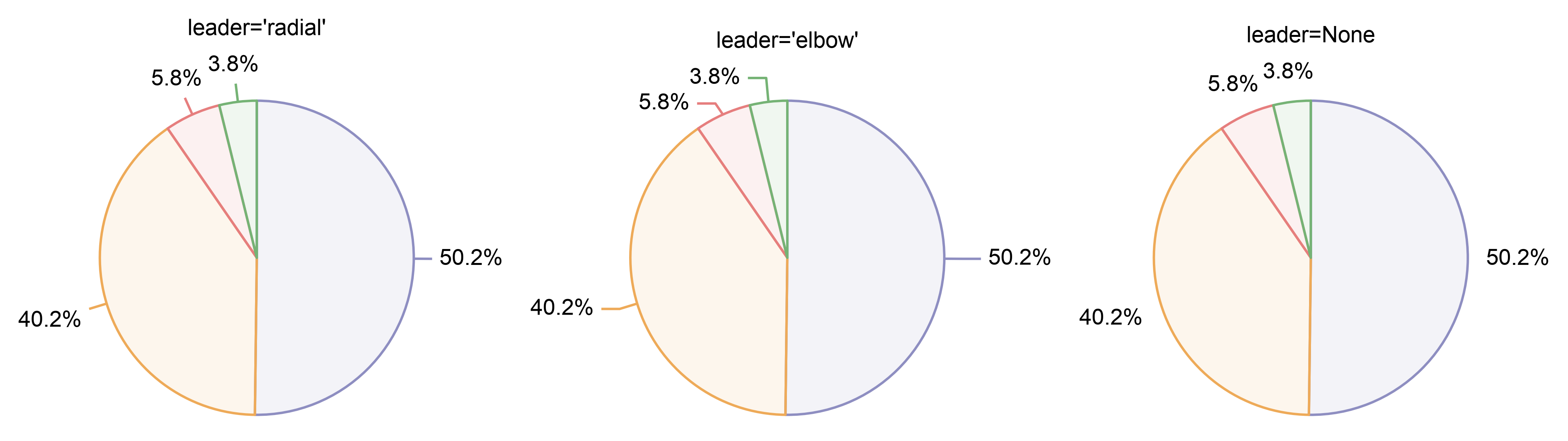
leader sets how an outside label hangs off its wedge.
"radial" (the default) carries the wedge’s mid-ray on past the rim
and centres the label on it. "elbow" bends the line into a short
horizontal tail, elbow_length millimetres long (2 by default),
and sets the label beside it, aligned away from the disc, so the text
starts leader_gap past the end of its tail. Every leader starts
on its own wedge’s rim at the mid-ray, and elbow labels are not lined
up into a column. None (or False) draws no line and centres
the label with its nearest point offset from the rim. The radial
labels here each sit on their own mid-ray. The two thin wedges’
elbow labels would touch there, so they are moved apart, 0.6mm each,
up and down their column (see “Crowded labels”); and the unled ones,
0.375mm apart, are nudged about a hundredth of a degree to make 0.4mm.
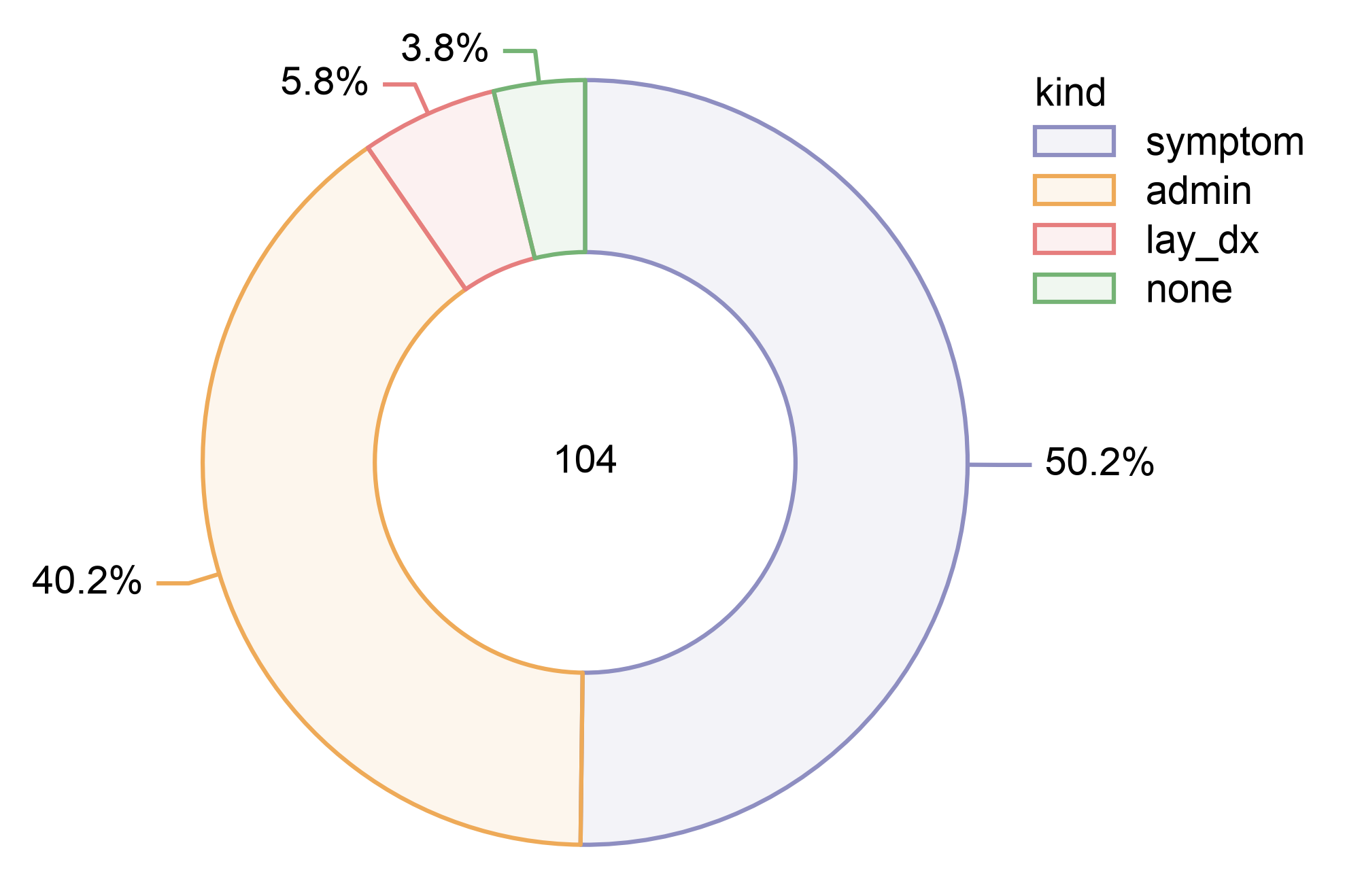
The default style is pp.rcParams["pie.leader"], so a figure set can
switch every pie at once. Here the donut from above, with every label
outside and the rcParam set to "elbow"; the last line puts the
default back for the rest of this page.
default_leader = pp.rcParams["pie.leader"]
pp.rcParams["pie.leader"] = "elbow"
fig, ax = pp.subplots(axes_size=(50, 50))
pp.pieplot(data=df, x="kind", y="n", donut=0.55, palette=palette,
           center_label="{:,.0f}".format, ax=ax,
           annotate={"anchor": "outside"})
pp.show()
pp.rcParams["pie.leader"] = default_leader
Crowded labels#
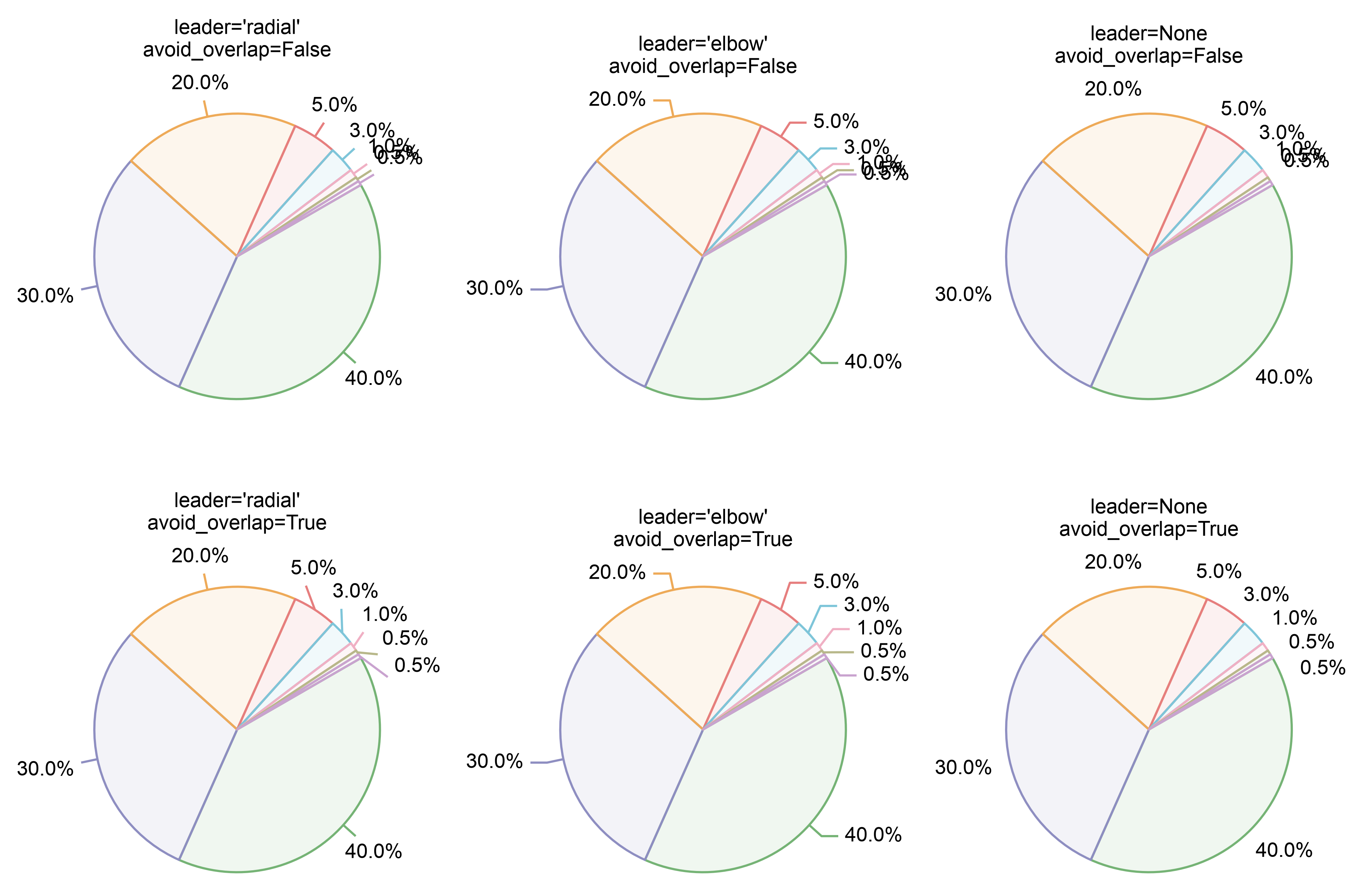
A long tail puts several slivers side by side, and their outside
labels would land on top of one another. avoid_overlap (on by
default, pp.rcParams["pie.avoid_overlap"]) moves them apart by as
little as keeps every two labels label_spacing millimetres apart
(0.4 by default, pp.rcParams["pie.label_spacing"]), keeping
their order. Elbow labels move up or down their column, and the
elbow moves with them so the tail stays level; radial labels move
round the circle, their leaders leaning to follow; labels with no
leader move round the circle too. A label that crowds nothing stays
exactly where it was, and no leader enters the disc. The top row is
the same chart with avoid_overlap=False.
A radial or unled label moves at most as far round as its leader can lean without cutting back across the chart. Where the slivers need more room than that – on a 25 to 40mm pie, four to six 0.5% wedges side by side near twelve or six o’clock, nine to eleven stacked near three or nine; more on a larger pie – the pie is drawn with elbow labels instead (next figure).
long_tail = pd.DataFrame({
    "kind": ["A", "B", "C", "D", "E", "F", "G", "H"],
    "n": [40.0, 30.0, 20.0, 5.0, 3.0, 1.0, 0.5, 0.5],
})
fig, axes = pp.subplots(nrows=2, ncols=3, axes_size=(36, 36),
                        hspace=10)
for row, avoid in zip(axes, [False, True]):
    for ax, leader in zip(row, ["radial", "elbow", None]):
        pp.pieplot(data=long_tail, x="kind", y="n", legend=False,
                   start_angle=30, ax=ax,
                   annotate={"anchor": "outside", "leader": leader,
                             "avoid_overlap": avoid})
        ax.set_title(f"leader={leader!r}\navoid_overlap={avoid}")
pp.show()
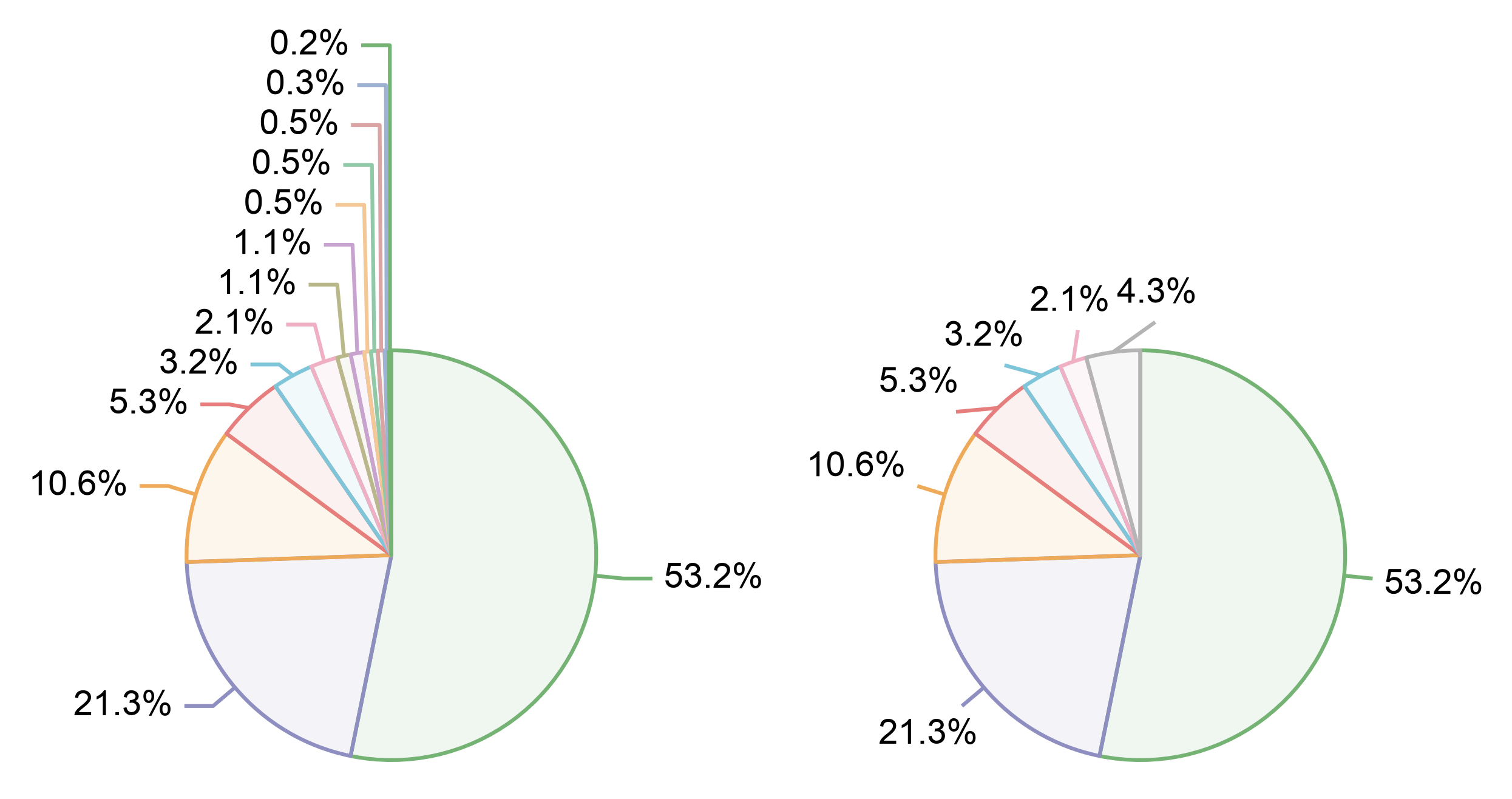
The thirteen-wedge tail below, at 30mm, is too much for that room:
with its slivers side by side at twelve o’clock, the bounded circle
pass does not keep its radial labels apart. So although both panels
ask for leader="radial" (the default), the left one comes out
with elbow labels: whenever that pass does not clear every overlap,
every outside label of the pie is laid out as an elbow label and
spread up and down its column, with the offset, leader_gap
and elbow_length in effect – and with leader lines even if
leader=None was asked for. That includes some pies a tight radial
packing could hold, but only with leaders lying along the rim’s
tangent; elbow labels read better there. No warning is issued. Where
the radial style matters more, min_share (right, 0.02) pools
the slivers into one wedge, leaving labels the circle can keep apart;
avoid_overlap=False keeps every label on its mid-ray, overlaps and
all.
tail13 = pd.DataFrame({
    "kind": [f"k{i}" for i in range(13)],
    "n": [50.0, 20.0, 10.0, 5.0, 3.0, 2.0, 1.0, 1.0, 0.5, 0.5, 0.5, 0.3,
          0.2],
})
fig, axes = pp.subplots(ncols=2, axes_size=(30, 30))
for ax, pie_kws in zip(axes, [{}, {"min_share": 0.02}]):
    pp.pieplot(data=tail13, x="kind", y="n", legend=False, ax=ax,
               annotate={"anchor": "outside", "leader": "radial"},
               **pie_kws)
pp.show()
Formatting and rotating the labels#
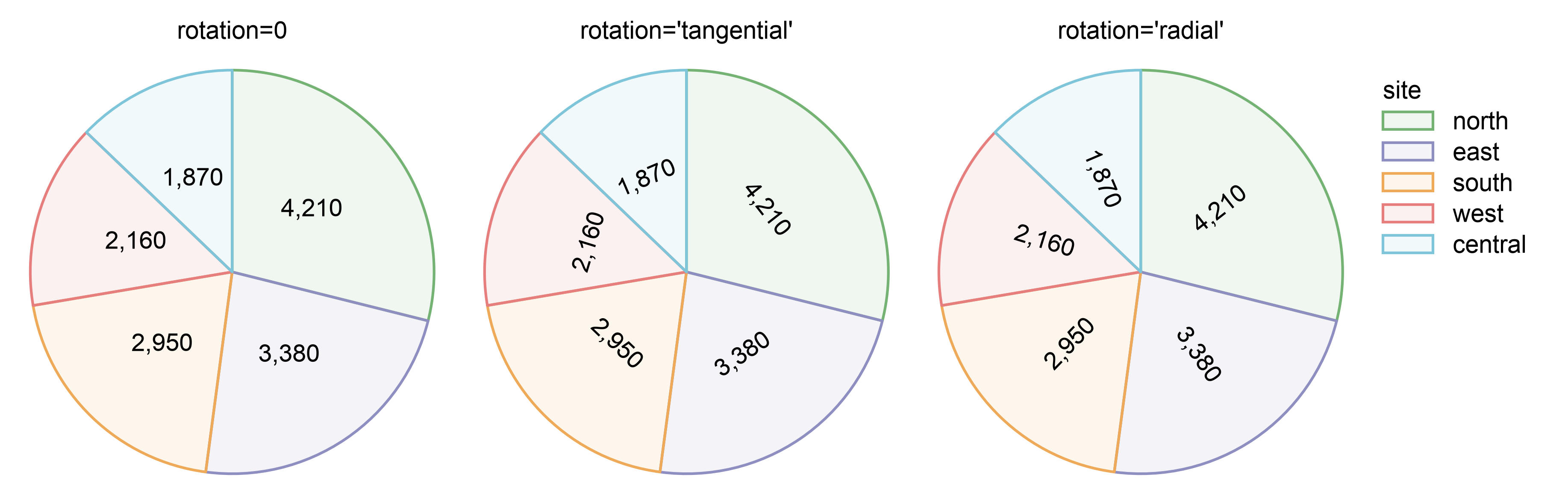
The default label is the wedge’s share of the total, as a percentage.
Passing fmt as a format spec labels the raw value instead — here
",.0f" for counts with a thousands separator. rotation takes
degrees, or "tangential" (along the arc) or "radial" (along
the spoke); either is flipped where needed so no label reads upside
down.
cohort = pd.DataFrame({
    "site": ["north", "east", "south", "west", "central"],
    "patients": [4210.0, 3380.0, 2950.0, 2160.0, 1870.0],
})
fig, axes = pp.subplots(ncols=3, axes_size=(42, 42))
pp.legend(side="right")
for ax, rotation in zip(axes, [0, "tangential", "radial"]):
    pp.pieplot(data=cohort, x="site", y="patients", ax=ax,
               annotate={"fmt": ",.0f", "anchor": "inside",
                         "rotation": rotation},
               title=f"rotation={rotation!r}")
pp.show()
Patterns#
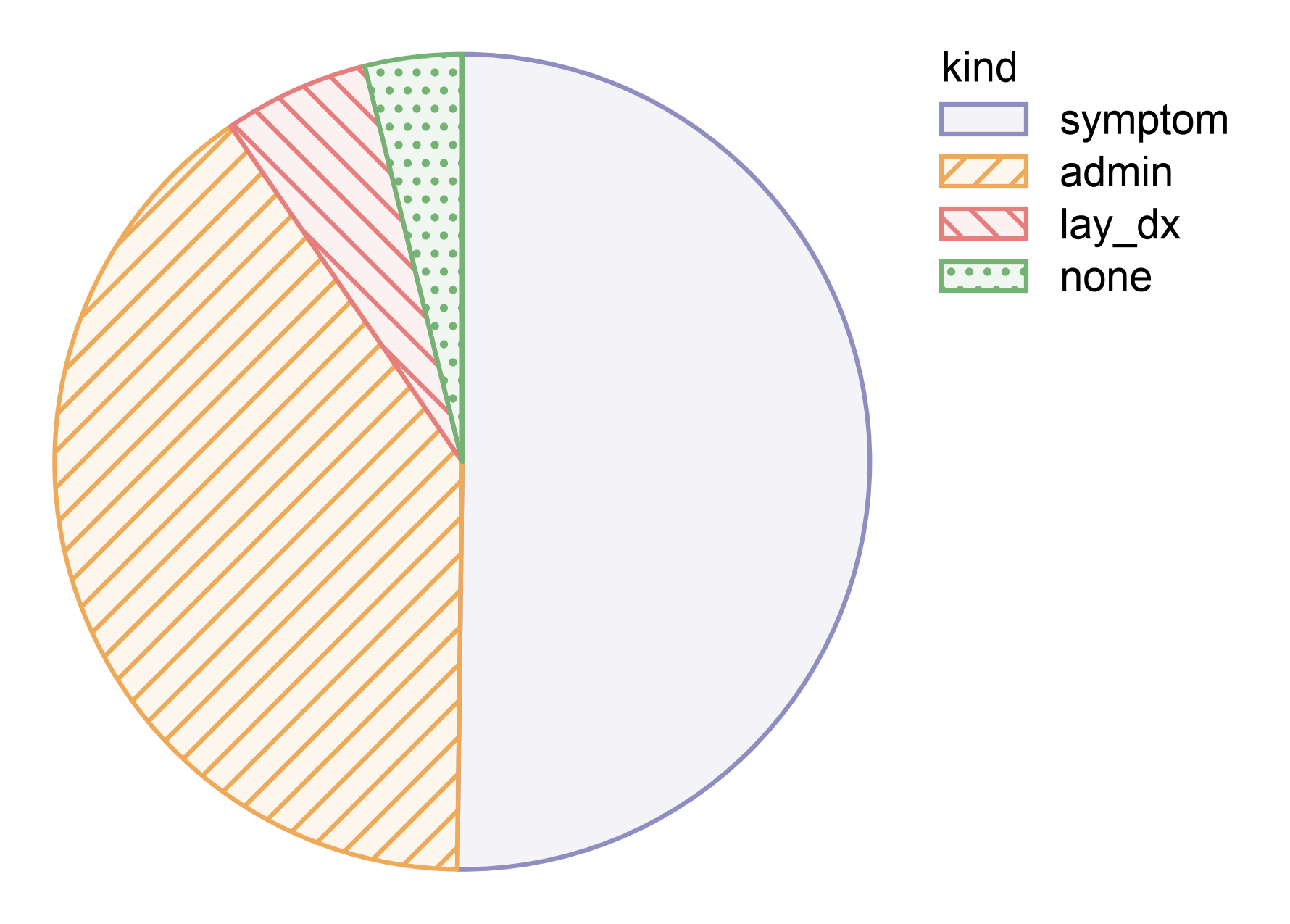
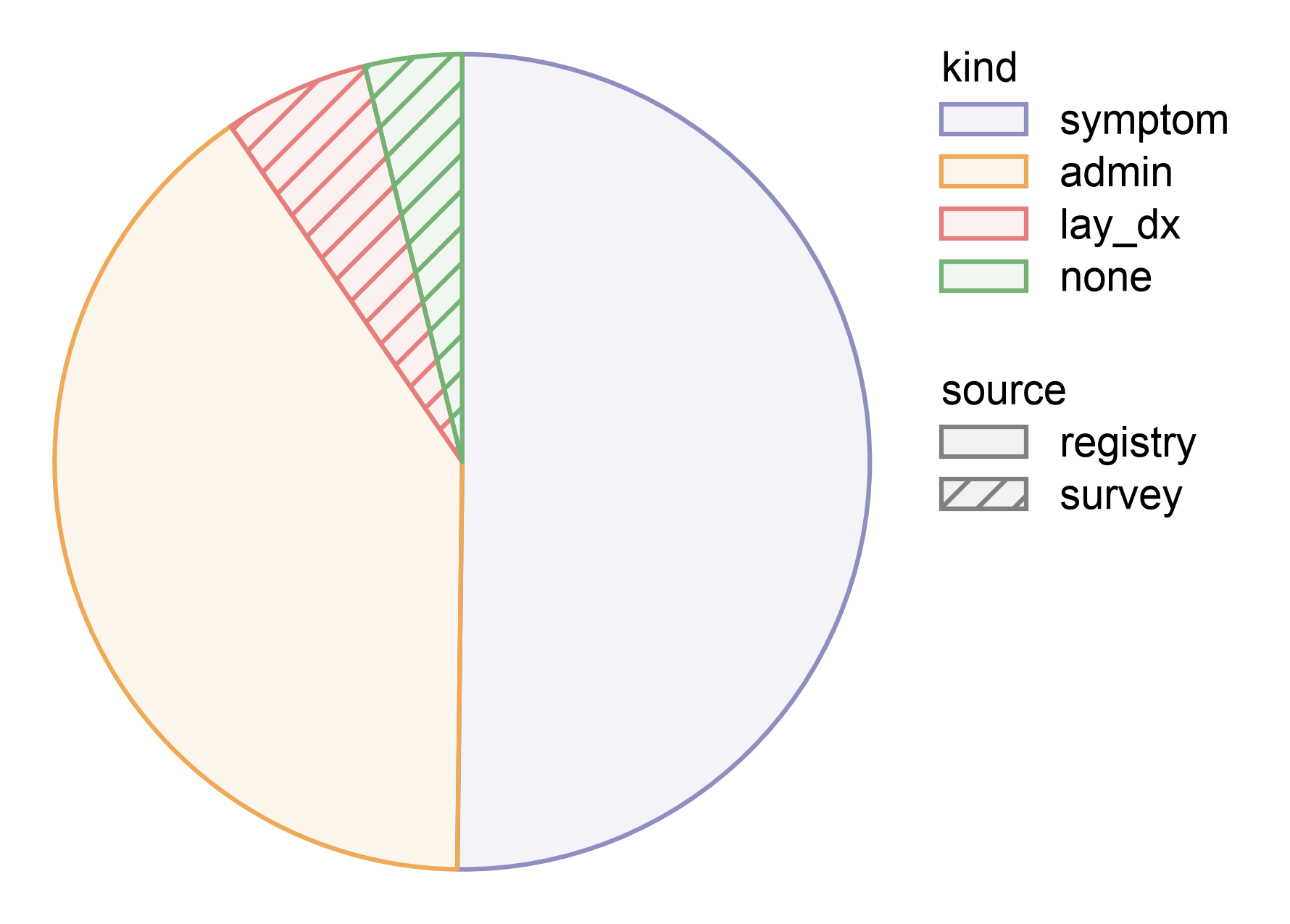
hatch adds a texture, keyed by a column the same way hue is.
Naming the wedge column itself (hatch="kind") gives every wedge
its own pattern on top of its own colour — useful when the figure may
be printed in greyscale — and the patterns fold into the colour
swatches of a single legend entry. Patterns come from
pp.HATCH_PATTERNS, at the density pp.set_hatch_mode sets,
unless hatch_map names them; the dense ones below stay readable in
the small legend swatches. Pattern strokes are drawn at the outline
width, linewidth (see the last section).
A pattern for a second column#
hatch may instead name a different column, as long as it is
constant within each wedge. The pattern then carries a second piece of
information, and gets a legend entry of its own with neutral swatches,
since colour already means the wedge.
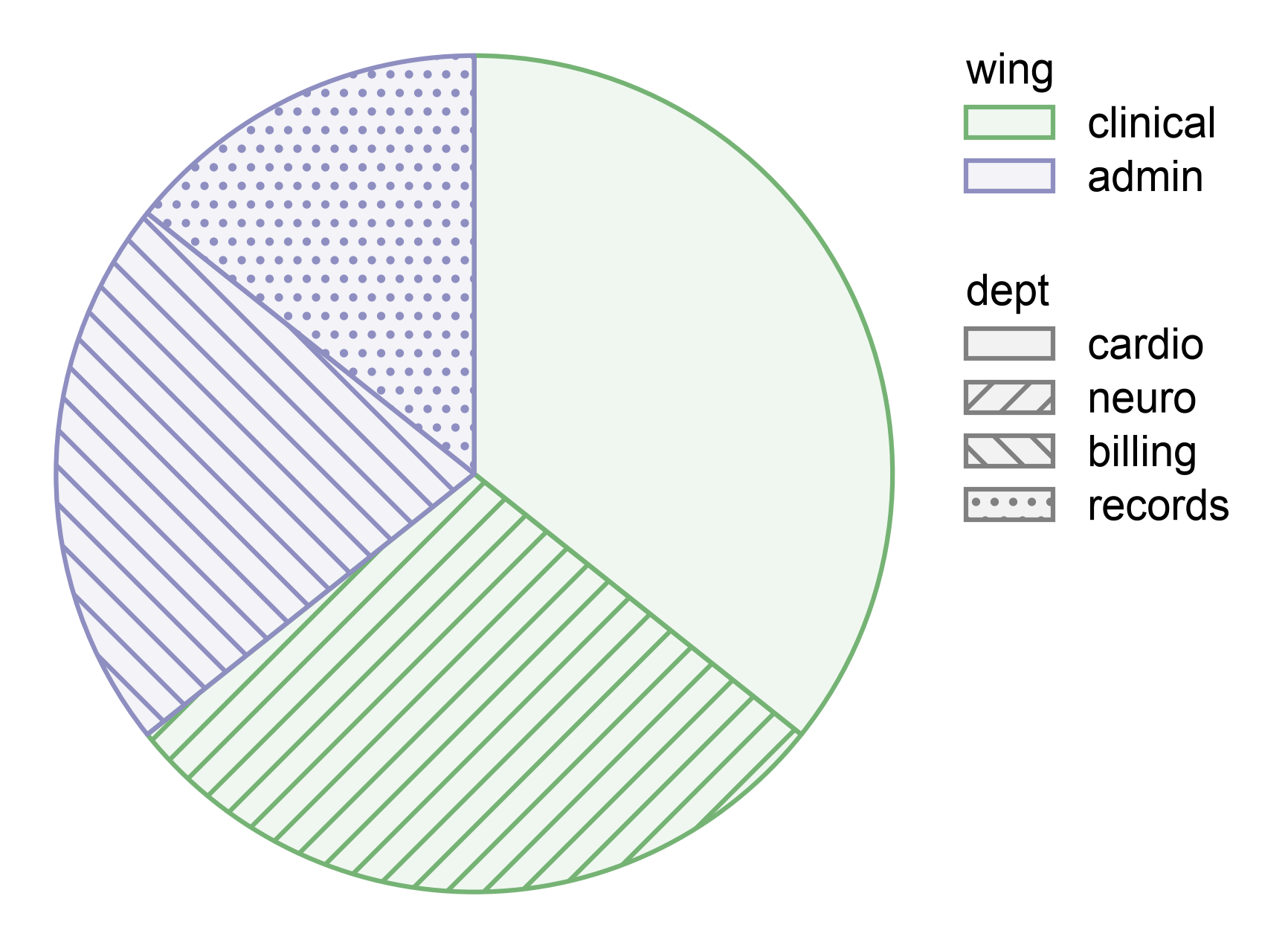
Colouring by something other than the category#
hue means colour and nothing else — unlike barplot, where
hue also controls how marks group, a wedge chart keeps its
structure in x. hue may name a column outside the one that
defines the wedges, as long as it is constant within each wedge. Here
four departments are coloured by the wing they belong to, so two
wedges share each colour; hatch="dept" gives each department its
own pattern, and the patterns their own legend entry, so the four stay
apart.
staff = pd.DataFrame({
    "dept": ["cardio", "neuro", "billing", "records"],
    "wing": ["clinical", "clinical", "admin", "admin"],
    "n": [30.0, 24.0, 18.0, 12.0],
})
fig, ax = pp.subplots(axes_size=(50, 50))
pp.pieplot(data=staff, x="dept", y="n", hue="wing", hatch="dept",
           hatch_map={"cardio": "", "neuro": "////", "billing": "\\\\\\\\",
                      "records": "...."},
           palette={"clinical": "#75b375", "admin": "#8e8ec1"}, ax=ax)
pp.show()
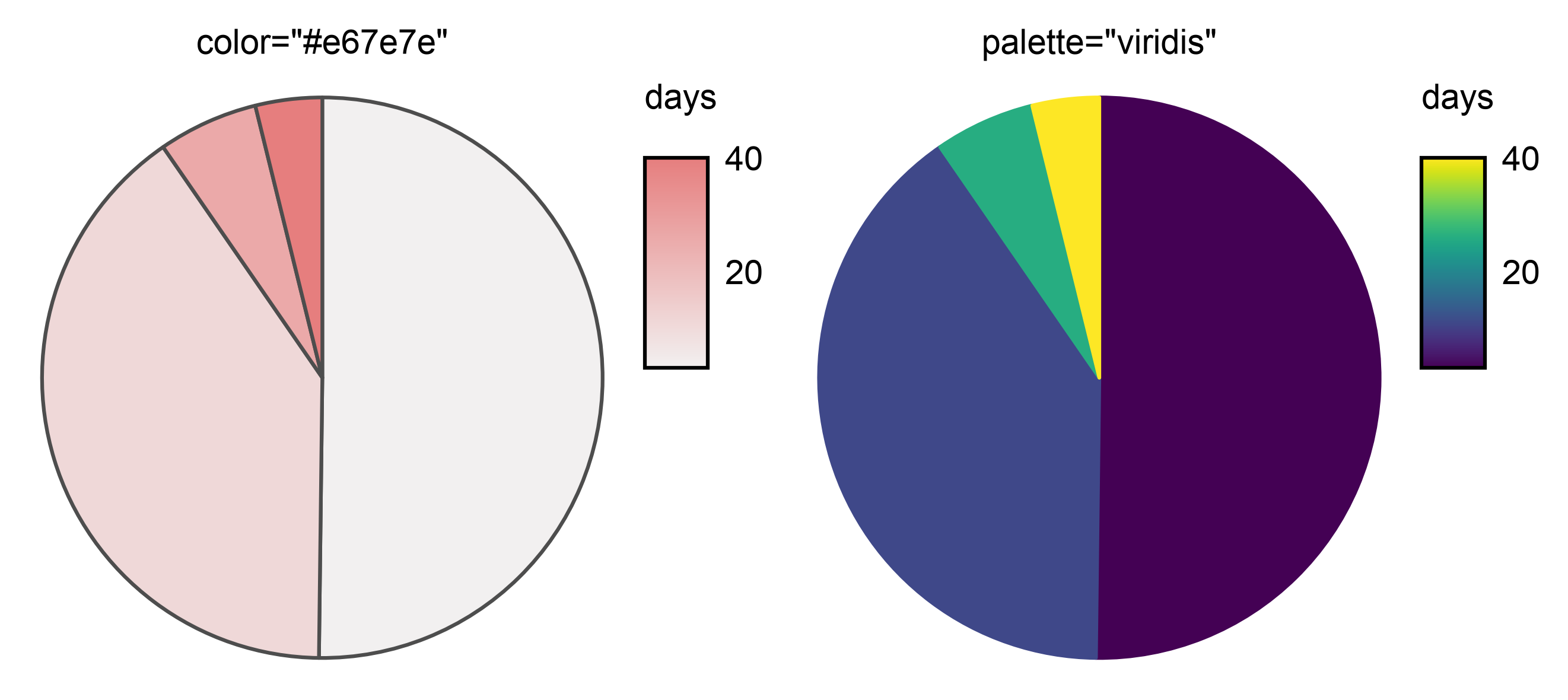
Colouring by a number#
A numeric hue maps through a colormap, and the legend becomes a
colorbar. As with a categorical hue, the value must be constant
within each wedge. palette names the colormap ("viridis", or a
matplotlib Colormap); a dict or list raises, since a number has no
discrete levels to assign colours to. Left unset, the colormap is a
light ramp running from near-white up to color. The colorbar shows
the colormap at full strength, so both panels fill their wedges solid
(alpha=1) to read against it. The ramp’s lightest wedge would all
but vanish into the page, so the left panel outlines its wedges in
grey; viridis starts dark and needs no outline.
waits = df.assign(days=[3.0, 11.0, 26.0, 40.0])
fig, axes = pp.subplots(ncols=2, axes_size=(42, 42))
pp.pieplot(data=waits, x="kind", y="n", hue="days", color="#e67e7e",
           alpha=1, edgecolor="0.3", ax=axes[0], title='color="#e67e7e"')
pp.pieplot(data=waits, x="kind", y="n", hue="days", palette="viridis",
           alpha=1, ax=axes[1], title='palette="viridis"')
pp.show()
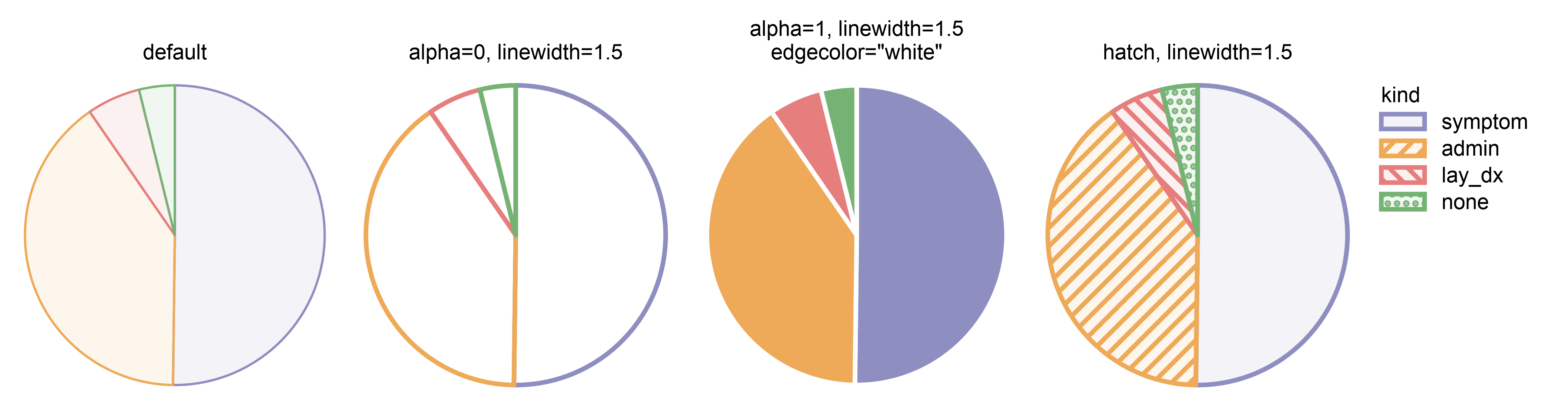
Fill, outline and stroke width#
Wedges take the house style by default: a tinted fill behind a
full-strength outline in the wedge’s own colour. alpha sets the
fill alone (0 leaves outlines only, 1 a solid fill);
edgecolor outlines every wedge the same way regardless of fill;
linewidth sets the outline width and the width of the pattern
strokes too, in the wedges and their legend swatches alike: the key
beside the hatched panel draws its patterns at 1.5.
fig, axes = pp.subplots(ncols=4, axes_size=(36, 36))
# The key is the hatched panel's, beside it, with its patterns at its
# stroke width. The colours are the same in every panel; only the
# hatched panel's key is collected because the panels draw their
# swatches in different styles.
pp.legend(axes=[axes[3]], anchor=axes[-1], side="right")
pp.pieplot(data=df, x="kind", y="n", palette=palette, legend=False,
           ax=axes[0], title="default")
pp.pieplot(data=df, x="kind", y="n", palette=palette, alpha=0,
           linewidth=1.5, legend=False, ax=axes[1],
           title="alpha=0, linewidth=1.5")
pp.pieplot(data=df, x="kind", y="n", palette=palette, alpha=1,
           edgecolor="white", linewidth=1.5, legend=False, ax=axes[2],
           title='alpha=1, linewidth=1.5\nedgecolor="white"')
pp.pieplot(data=df, x="kind", y="n", palette=palette, hatch="kind",
           hatch_map=hatches, linewidth=1.5, ax=axes[3],
           title="hatch, linewidth=1.5")
pp.show()
Total running time of the script: (0 minutes 10.220 seconds)